
-
Right-click the user in the search results, then click Change Password.
-
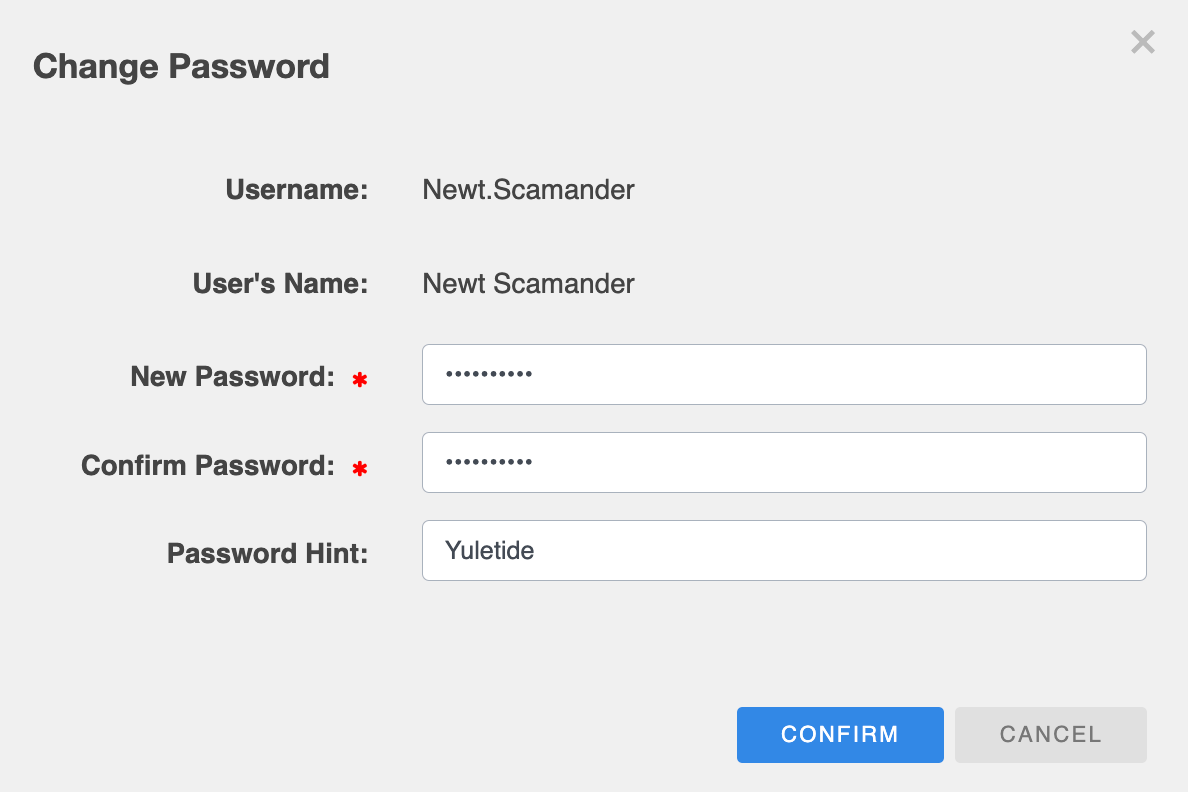
On the Change Password dialog, enter a strong password twice.
Passwords must be between 6 and 20 characters. It must also contain at least one lowercase and uppercase letter, number and special character
-
If required, enter a brief clue in the Password Hint field to help the user remember their password if they forget it. The hint should trigger their memory without compromising the security of the account.
-
Click CONFIRM.
-
Enter a reason, then click CONFIRM again.
Also see