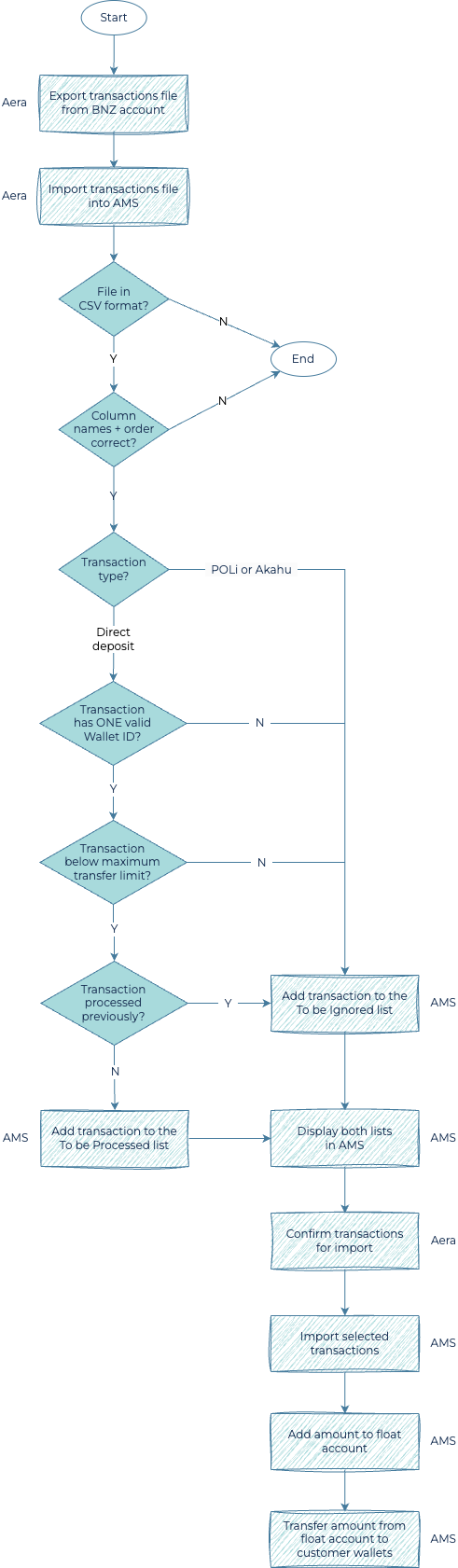
Customers can top up their wallets by depositing funds directly into your BNZ bank account. They must include their Wallet ID (phone number) when making the deposit.
An administrator then downloads the daily credit transactions for the BNZ bank account and uploads it to AMS.
AMS processes the CSV file, moves the deposits to a float account, then transfers funds to the customers' wallet accounts from the float account.
Step 1. Exporting credit transactions
-
Log into your BNZ account and export a CSV file of the credit transactions.
Step 2. Importing the CSV file
-
On the AMS menu, click Settlement and Reconciliation > Bank Files > Import Deposits.
-
On the Import Direct Deposits page, click Import File.
-
To upload the CSV file you exported in Step 1, click Select File.
-
To check that the file includes the correct columns in the specified order, click Check file.
-
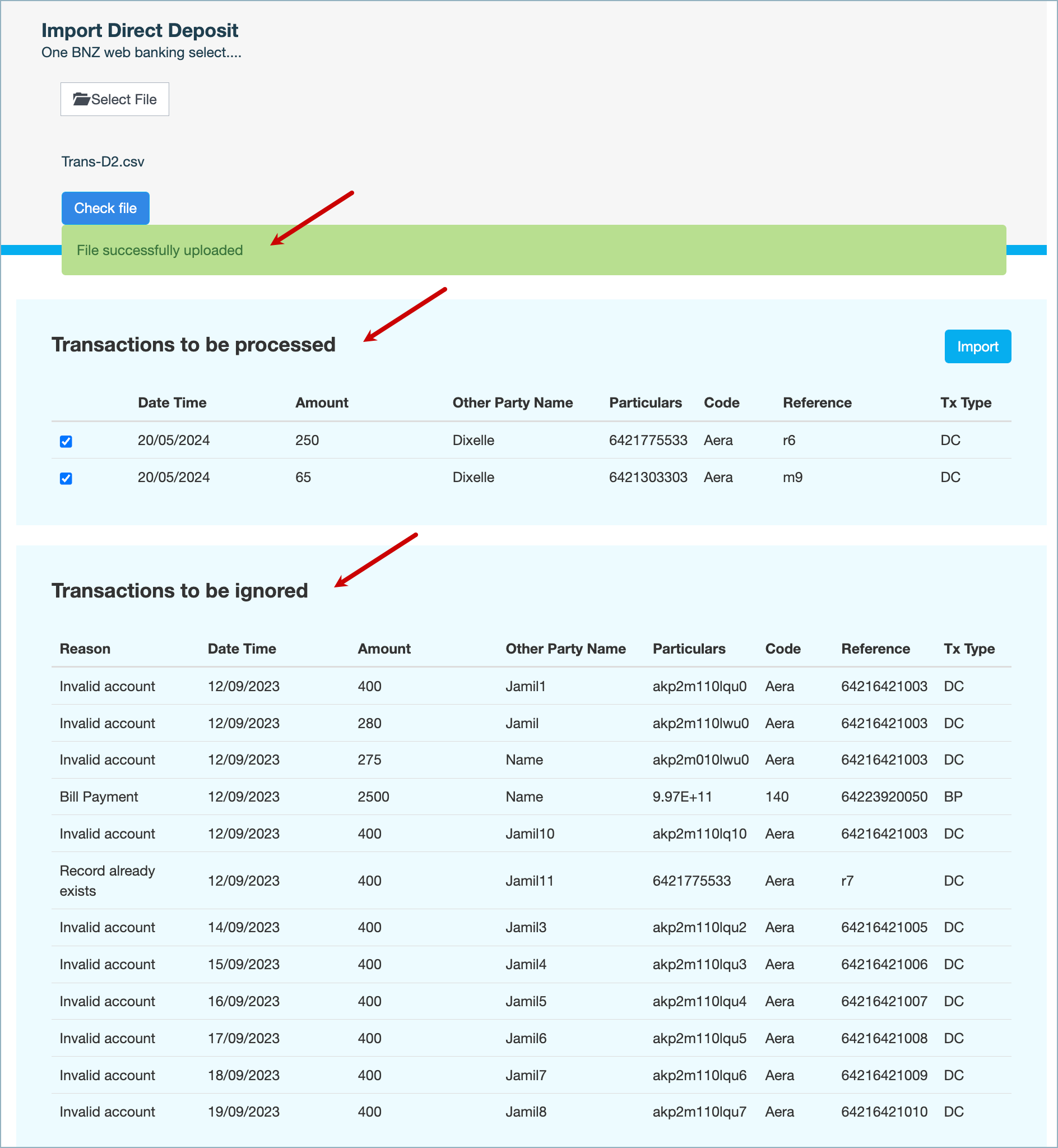
Click CONFIRM to proceed. AMS displays a File successfully uploaded message and lists the valid deposit transactions under Transactions to be processed, and the rest under Transactions to be ignored.
-
Under Transactions to be processed, select the transactions you want to import, then click Import.
-
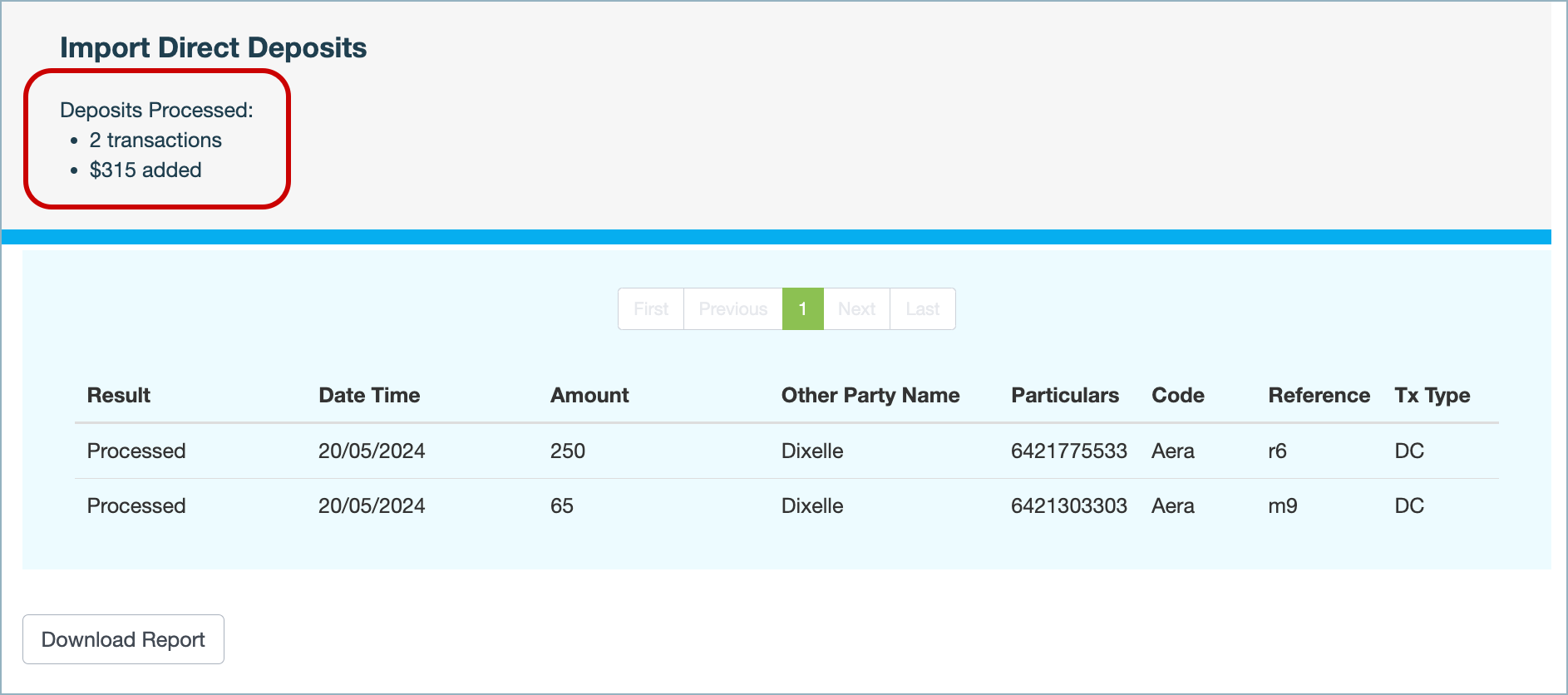
Click CONFIRM to proceed. AMS refreshes the Import Direct Deposits page with the number of transactions processed and the amount added to the float account.
Step 3. Reviewing the imported transactions
-
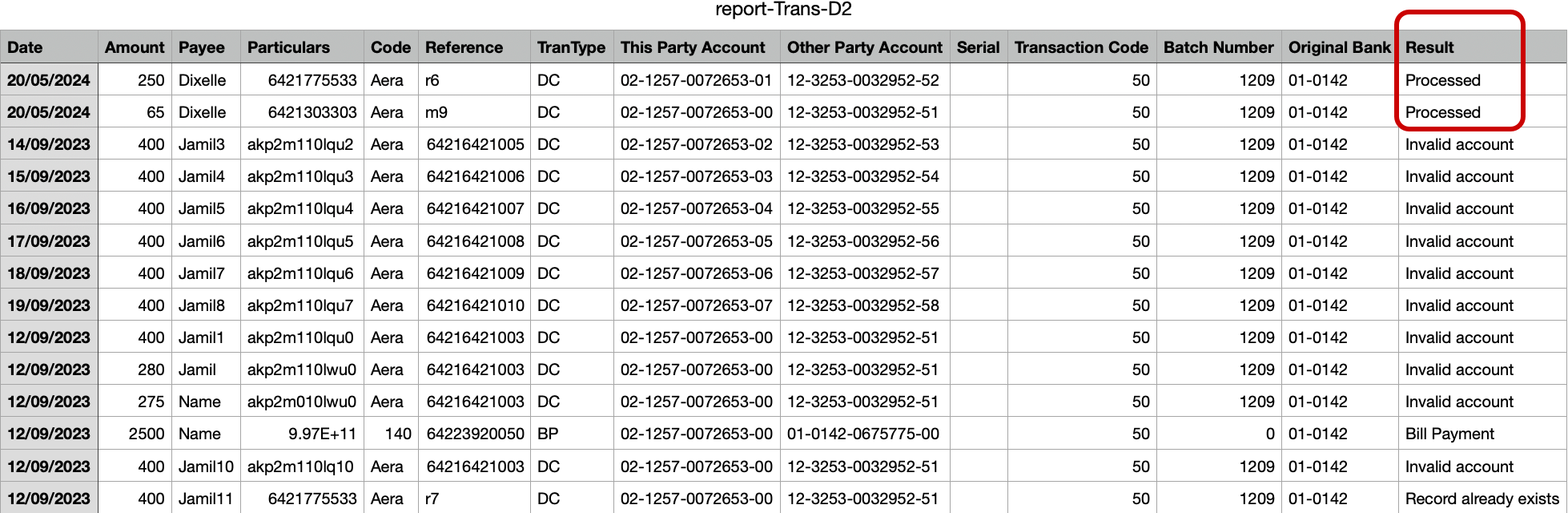
Click Download Report and open the CSV report.
-
Examine the imported transactions to ensure that they correctly match the deposits from the CSV file.