
-
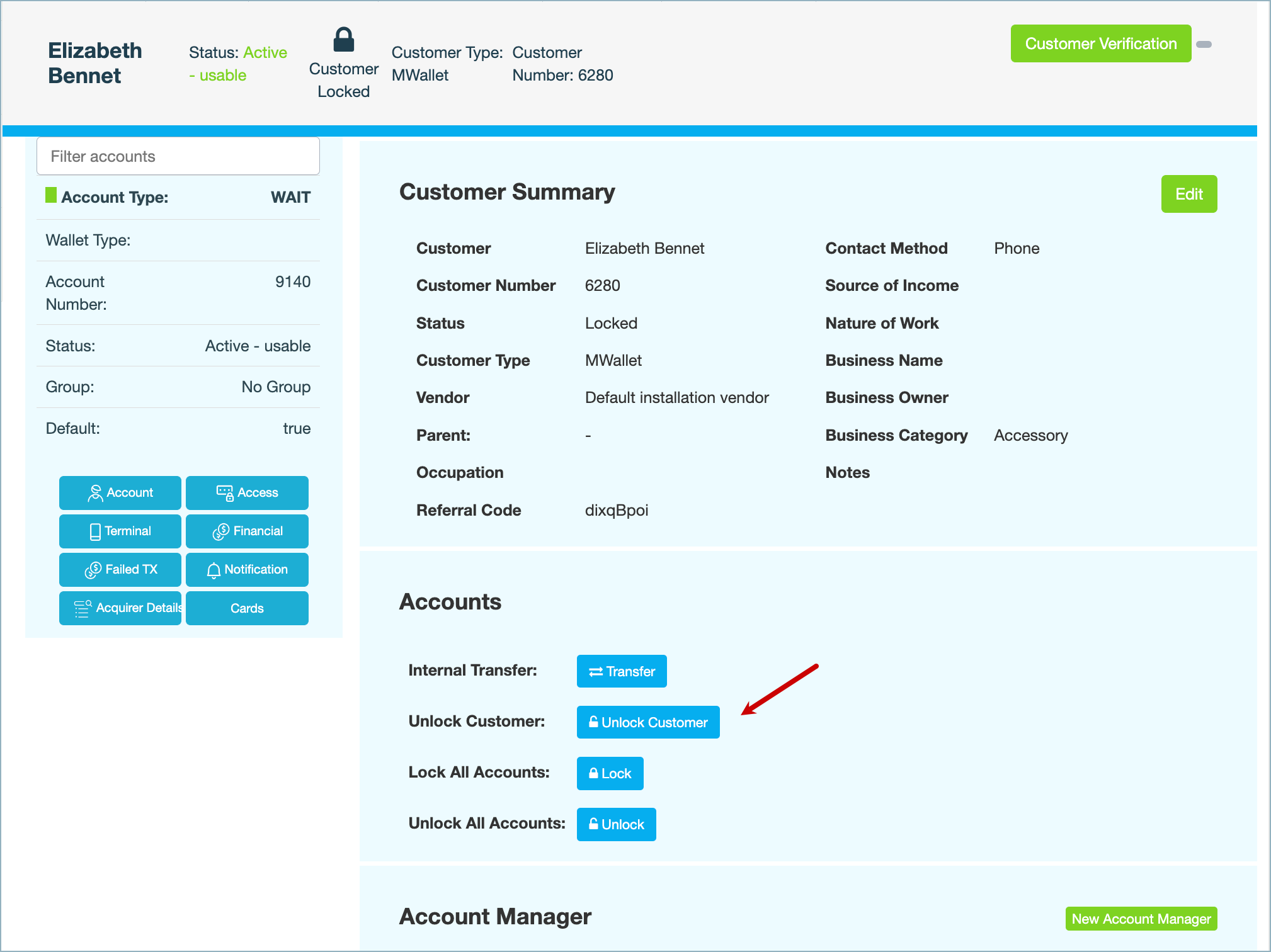
Under Accounts, click Unlock Customer.
-
Enter a reason for unlocking the customer's account, then click CONFIRM. A Customer unlocked message is displayed at the top right.
What's next
-
Depending on their notification preferences, customers receive an email, SMS and push notification on the mobile app confirming that their account has been unlocked.
-
Scheduled payments, if any, resume.
-
Any associated debit cards can now be used.
-
Additionally, the following activities are enabled on the mobile app:
-
QR payments
-
Top-ups and withdrawals from the wallet
-
Bill and bank payments
-
Requesting and transferring funds
-
Opening and closing accounts
-
Deleting customer profiles
-
Requesting cards
-
Also see