-
On the CMS menu, select Customer.
-
On the Customer Search tab, use one or more of the following fields to find a customer:
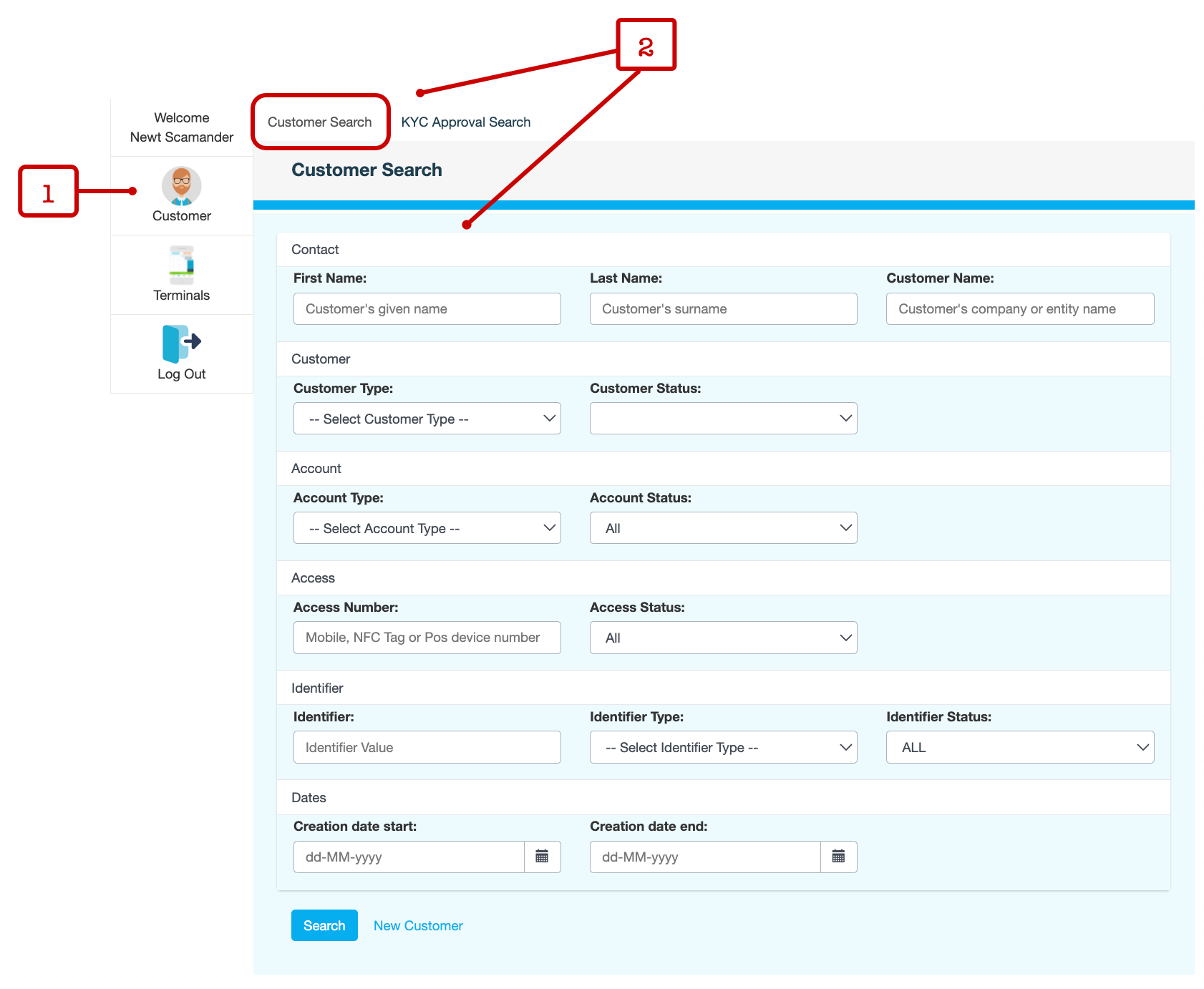
The text fields accept partial values and are not case-sensitive.
|
Group |
Field |
Description |
|---|---|---|
|
Contact
|
First Name |
Customer’s first name |
|
Last Name |
Customer’s last name |
|
|
Customer Name |
Customer's full name as recorded under Customer Summary in their customer record |
|
|
Customer |
Customer Type |
Type of customer. For example, Merchant, Supplier, Partner. |
|
Customer Status |
Status of the customer record. For example, Embryo, Active, Closed. |
|
|
Account
|
Account Type |
Type of account that the customer holds. For example, Staff, Operator, Biller. |
|
Account Status |
Status of the account. For instance, is the account active, locked or closed? |
|
|
Access
|
Access Number |
Mobile phone number that the customer uses to access their account |
|
Access Status |
Status of the access number. For example:
|
|
|
Identifier |
Identifier |
Customer’s identifier number as recorded under Customer Identification in their customer record |
|
Identifier Type |
Type of identifier. For example, Driver's License, Passport, Birth Certificate. |
|
|
Identifier Status |
Status of the identifier.
|
|
|
Dates |
Creation date start |
Date range within which the customer's account was created |
|
Creation date end |
-
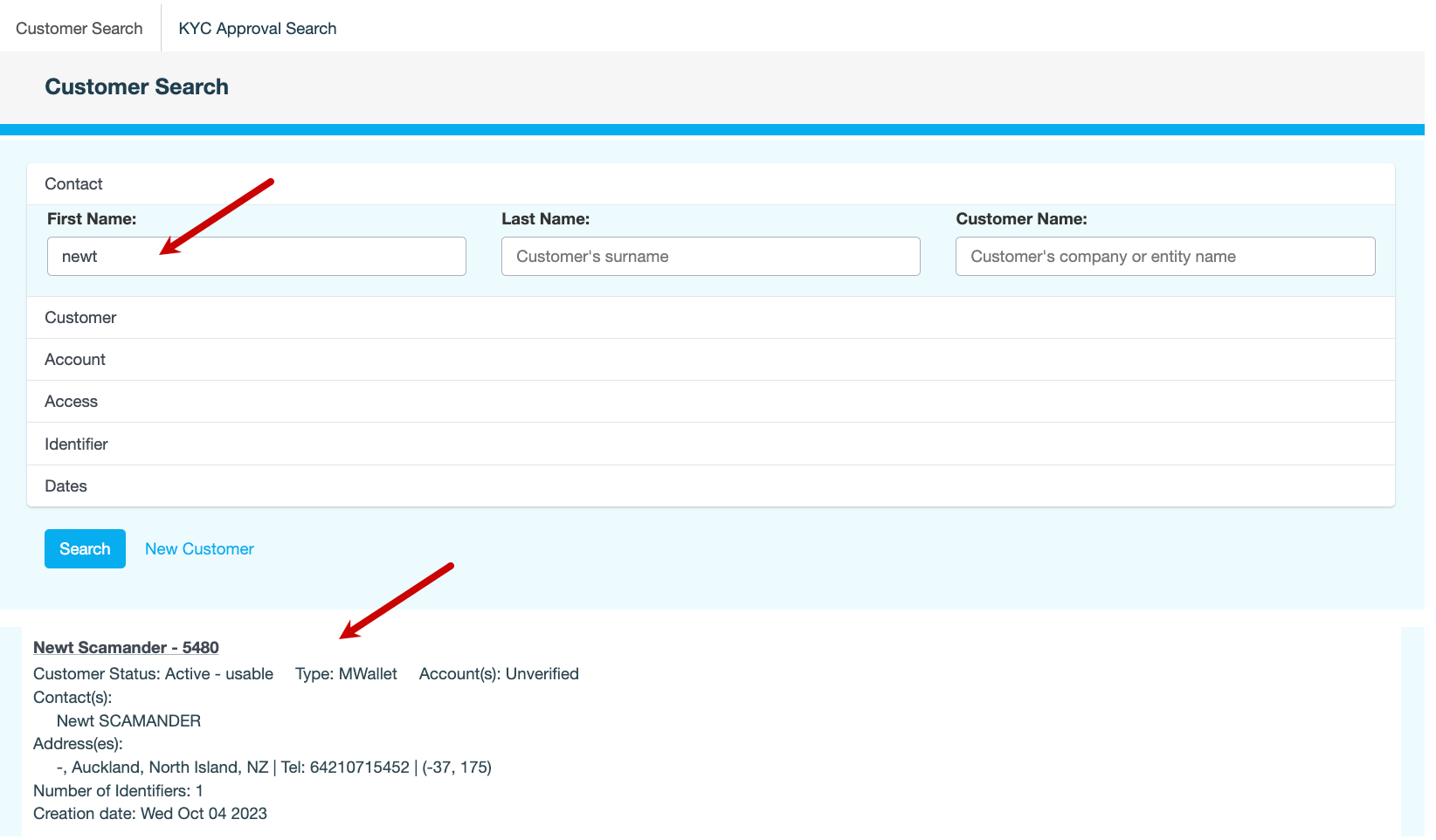
Click Search to view a list of customers who match your search criteria.
-
On locating the customer in the list displayed, click the row to open the customer record.
In the example below, we're trying to locate customers whose first name contains the word newt.