
Follow these instructions if a customer wants to set up a new PIN.
If you proceed, the new PIN comes into effect on every device that uses this access number to log into the Aera app.
-
Find the customer who requires a new PIN.
-
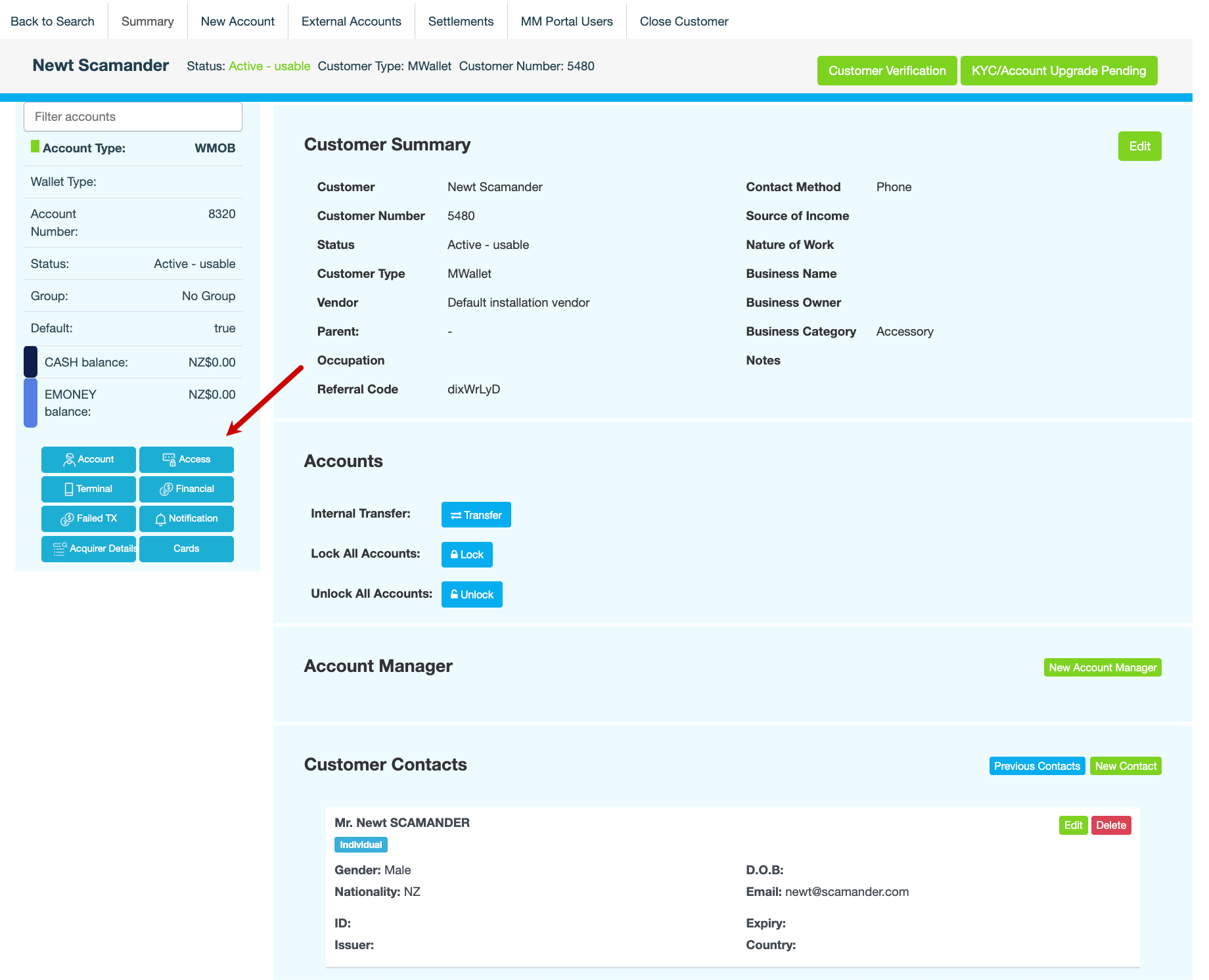
Click Access.
-
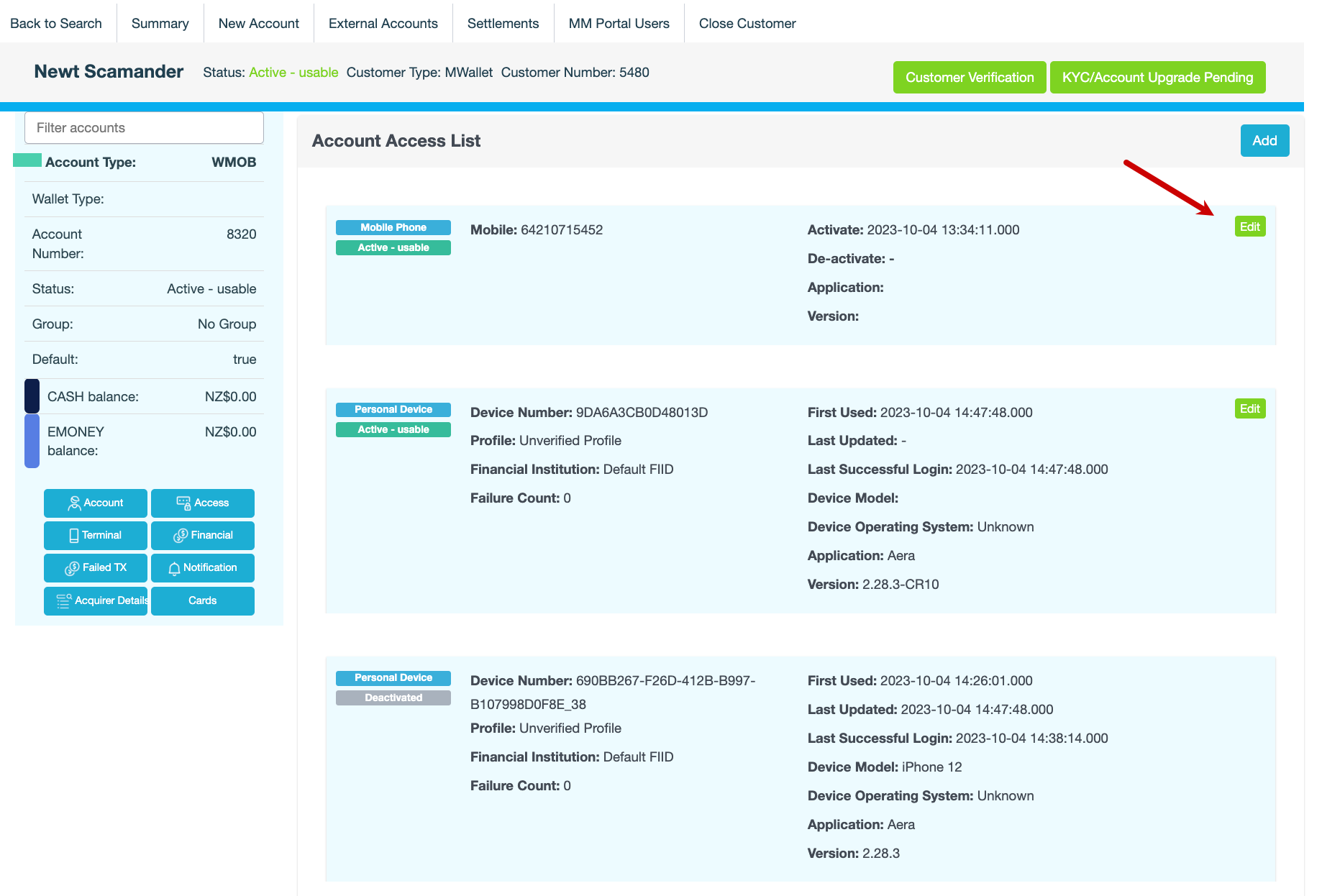
On the Account Access List pane, click Edit next to the device listed as Mobile Phone, which is usually the first one in the list.
-
Click Reset.
-
Enter the reason for setting up a new PIN, then click CONFIRM. The following message is displayed:
Force user to reset pin at login? -
If you want to force the customer to change their PIN the next time they log in, click YES. Otherwise, click NO. The following message is displayed:
Generated pin: <New PIN>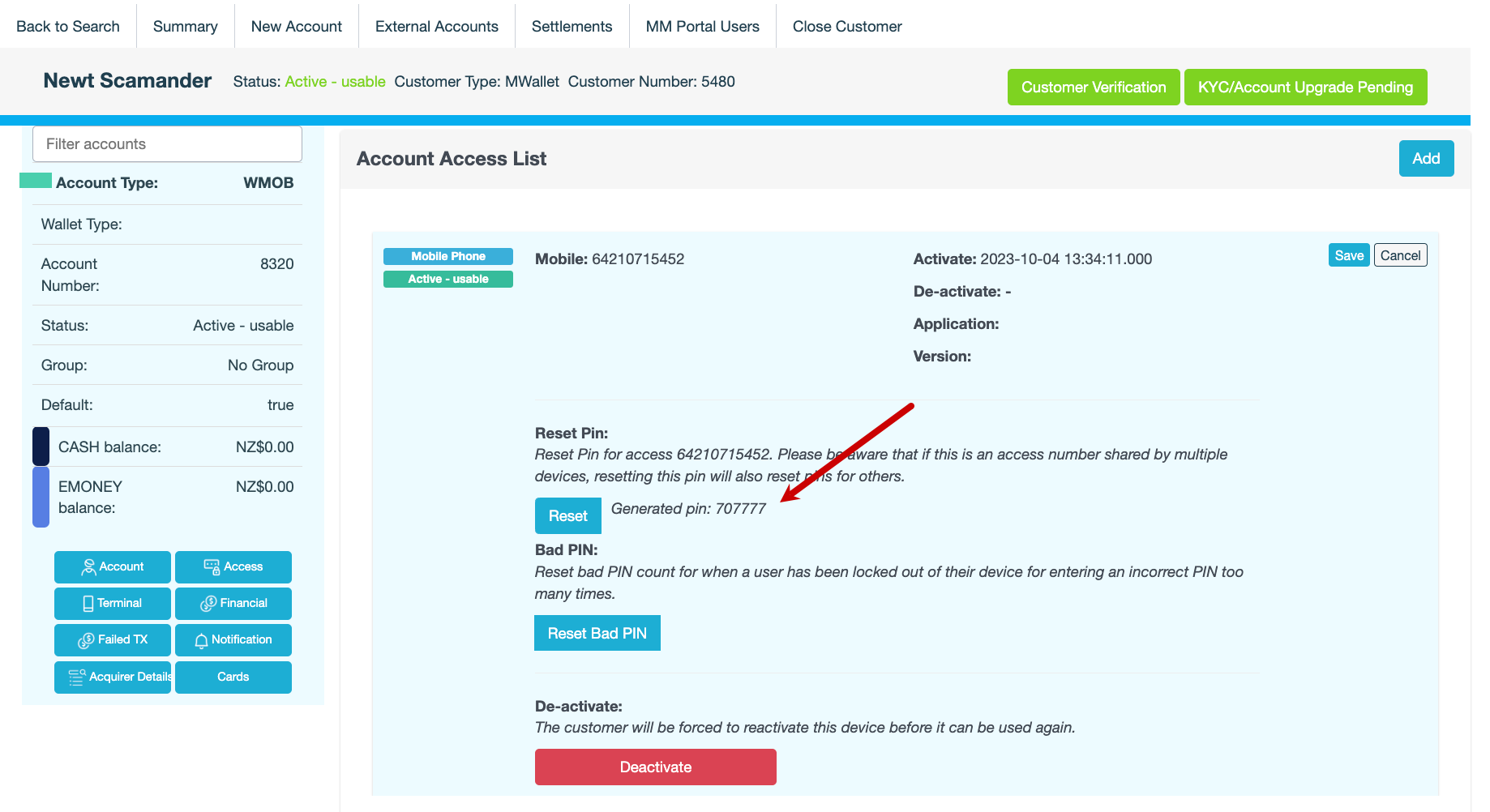
-
Click Save.
-
Enter the reason for setting up a new PIN, then click CONFIRM.
Also see