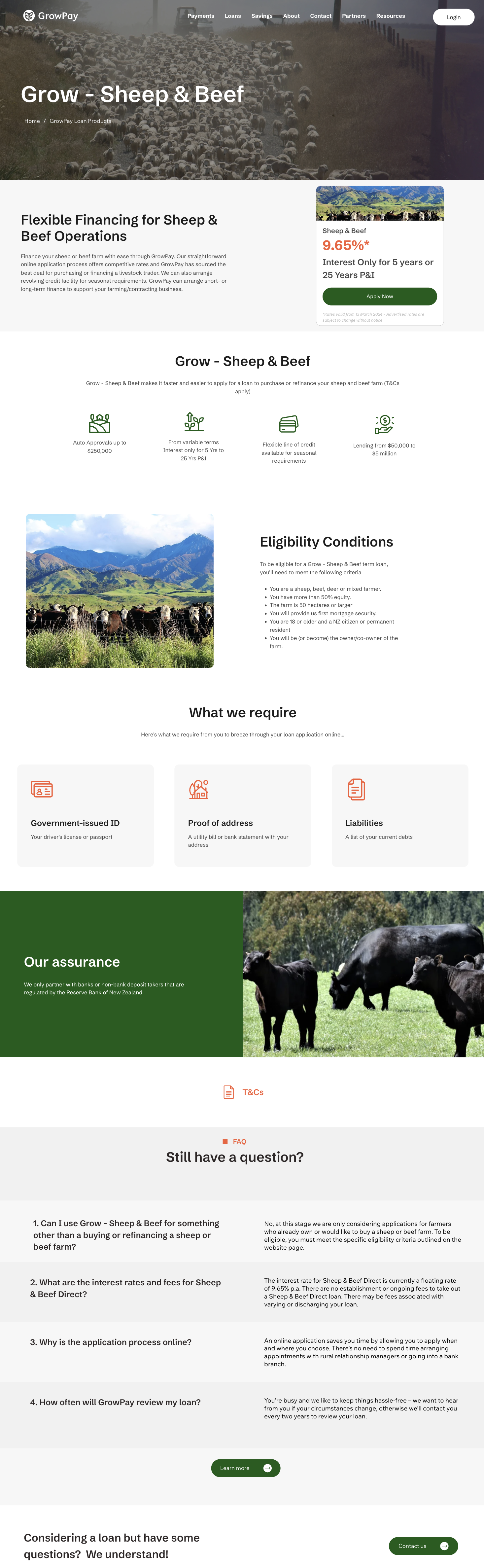
This article uses an example to illustrate how to design a product page on the GrowPay website.
-
On the WIXSTUDIO menu, click CMS.
-
Under Your Collections, click a collection. For example, GrowPay Loan Products.
-
On the top right of the page, click Add Item.
-
On the Add new item page, enter the following information:
|
Page section |
Description |
Edit view |
Published view |
|---|---|---|---|
|
Title |
The name of the loan product. Note that the page title will feature in the URL. |

|
– |
|
Description |
A brief overview of the page content. The description is used to improve the page’s visibility and ranking in search engine results. |

|
– |
|
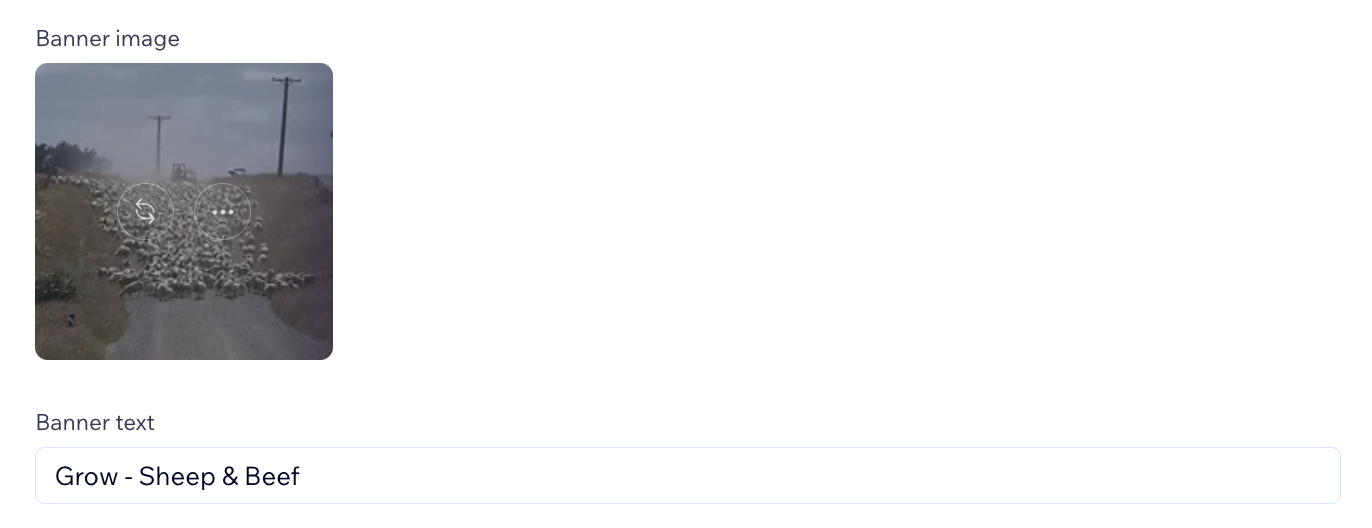
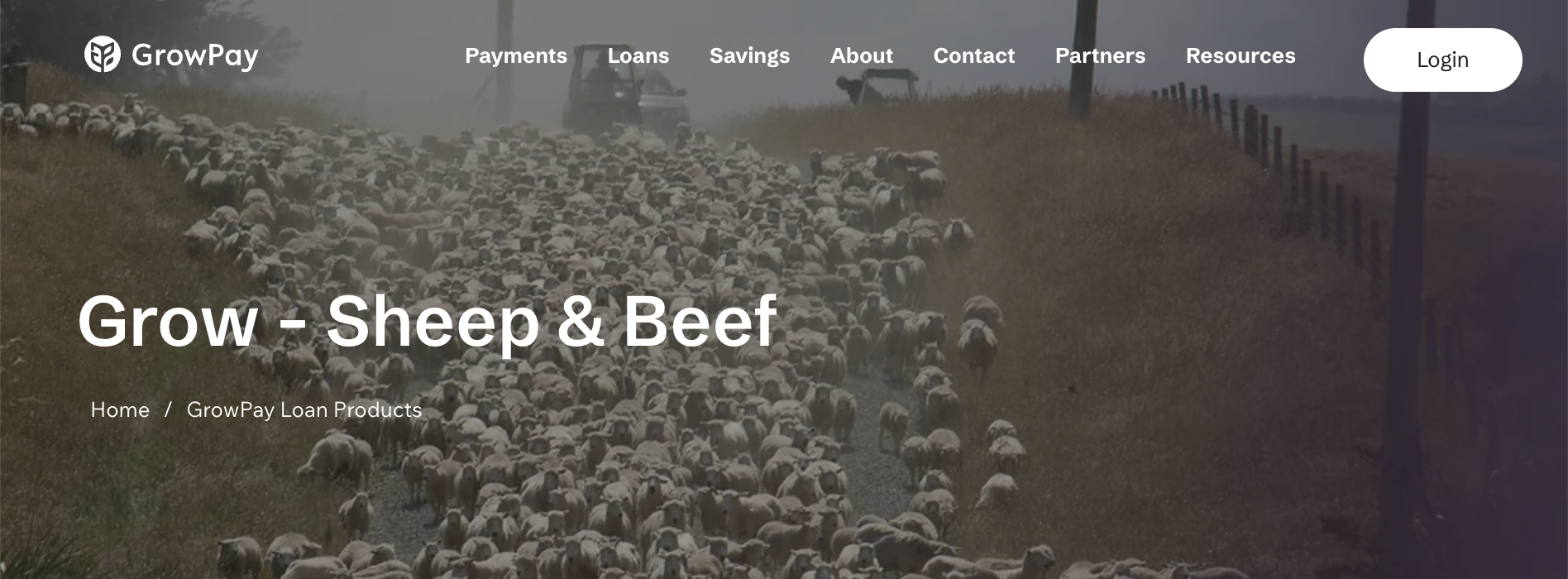
Banner |
The main image displayed at the top of the page |
|
|
|
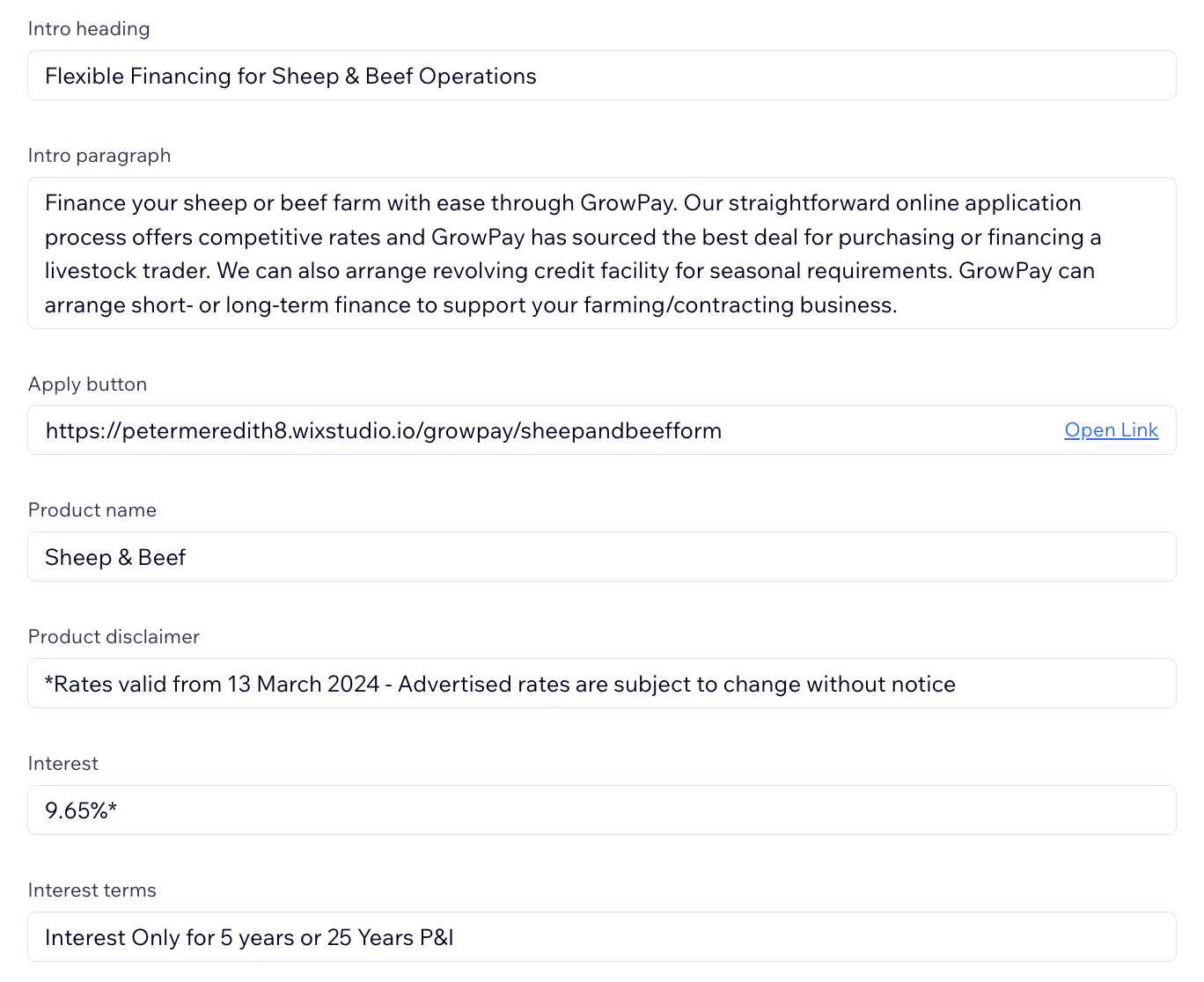
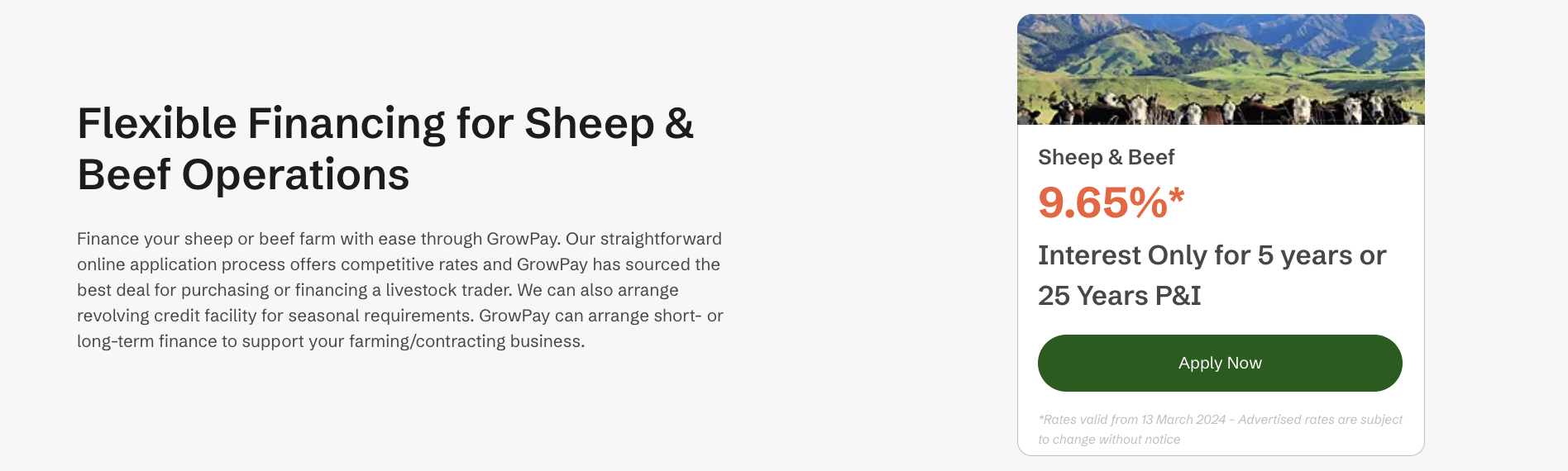
Product information |
Information about the loan product |
|
|
|
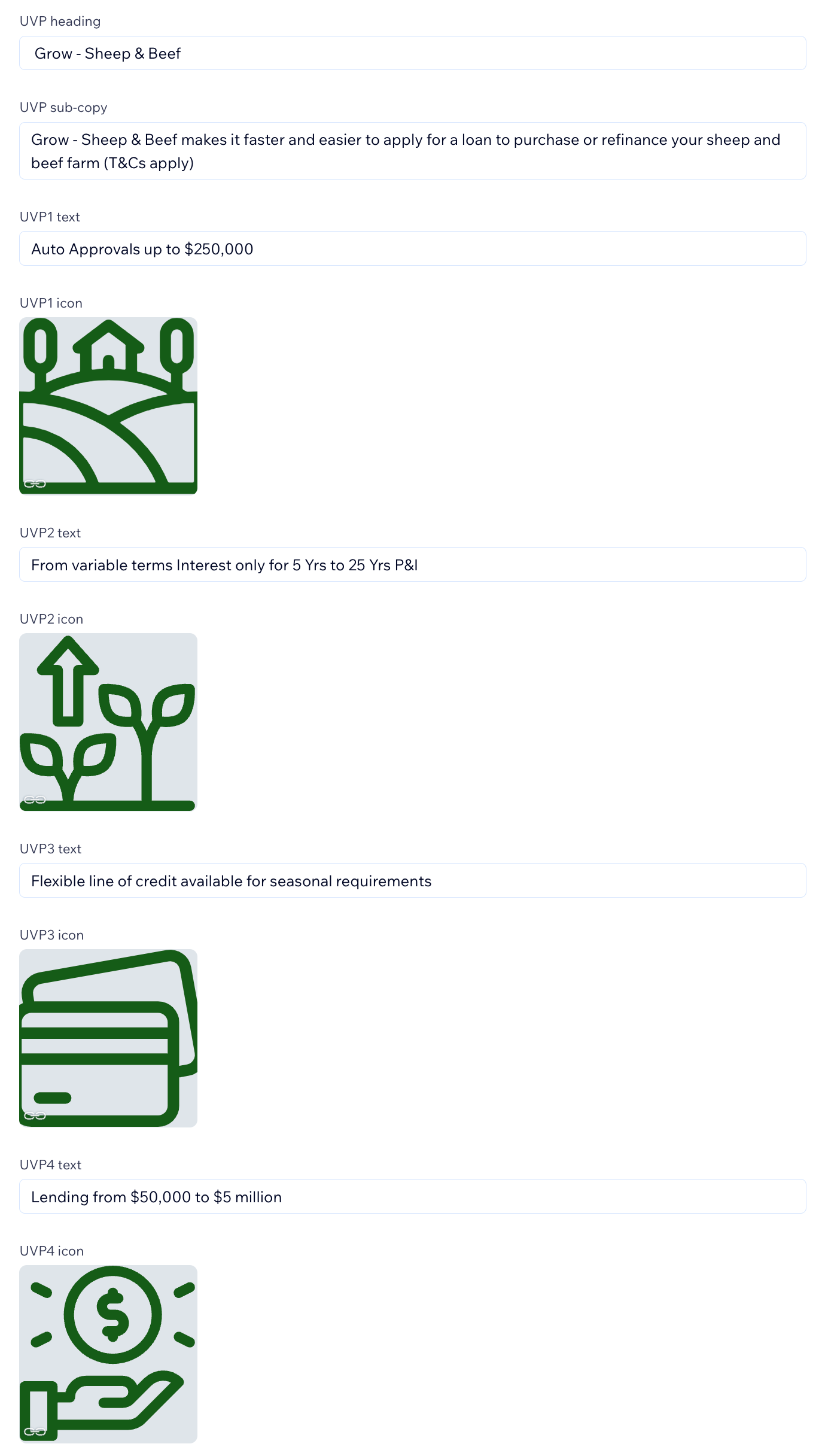
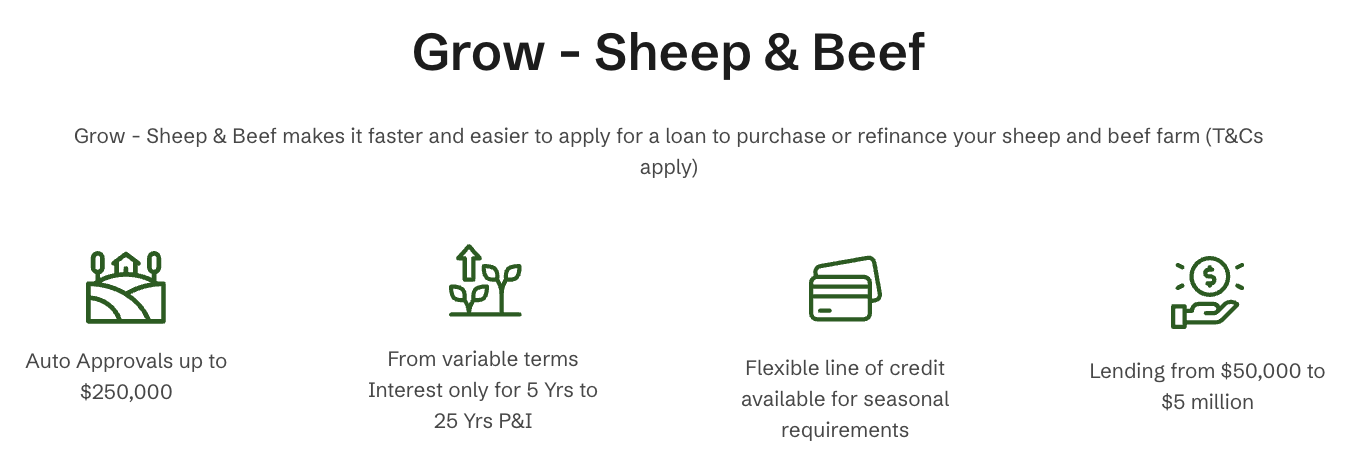
Unique value proposition |
A statement highlighting the distinctive benefits of the loan product |
|
|
|
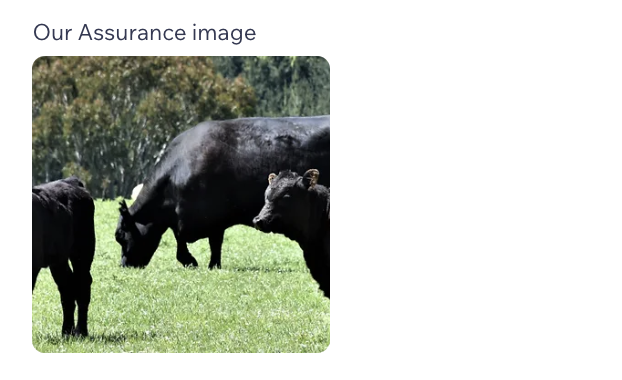
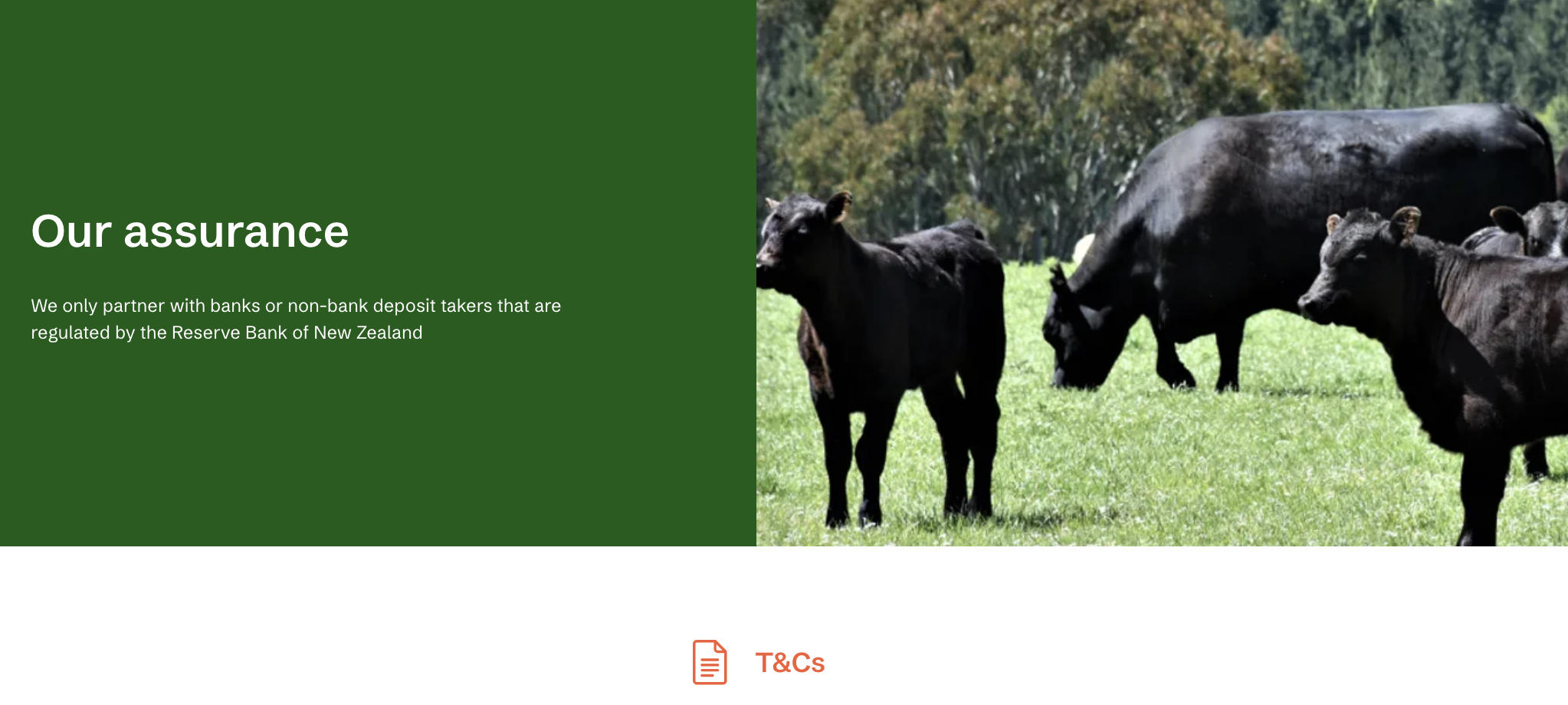
Our assurance |
Additional statements or guarantees related to the product |
|
|
|
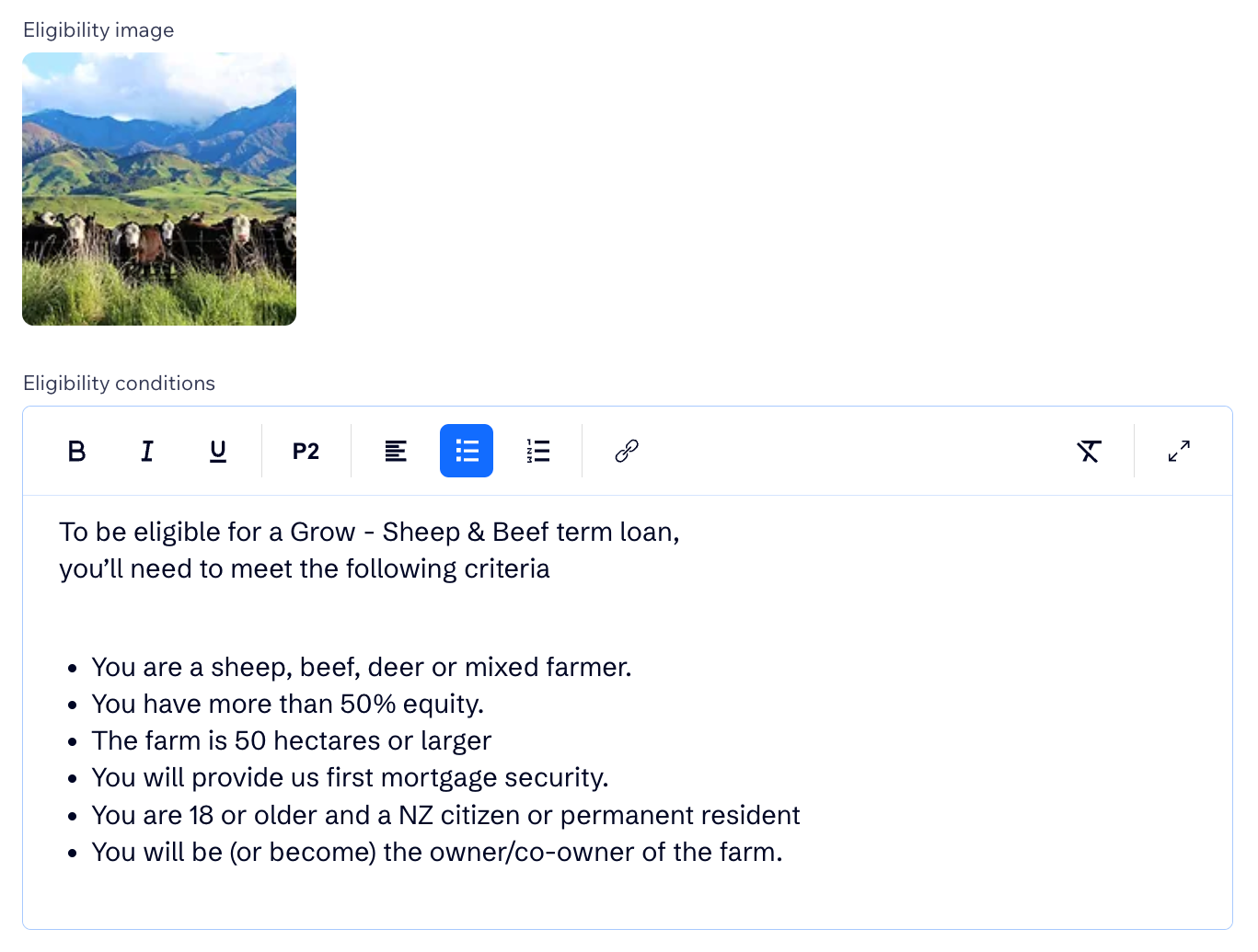
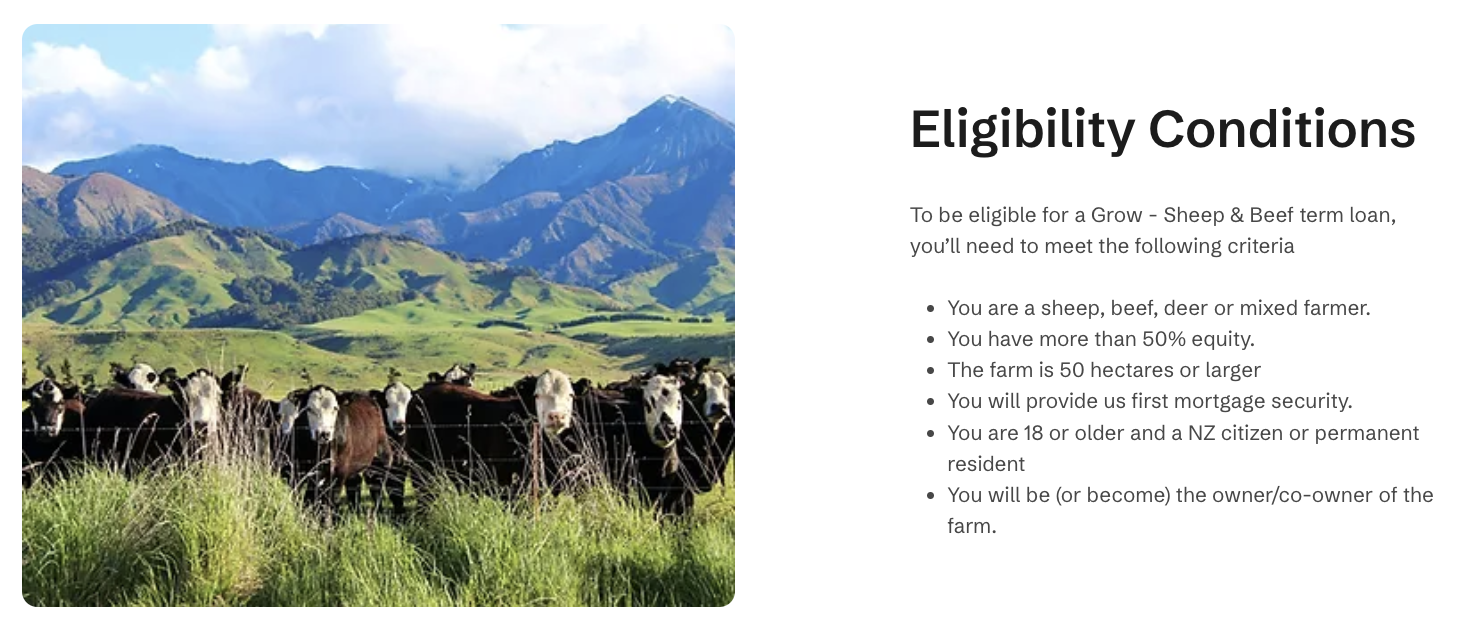
Eligibility |
Criteria that applicants must meet to qualify for the loan |
|
|
|
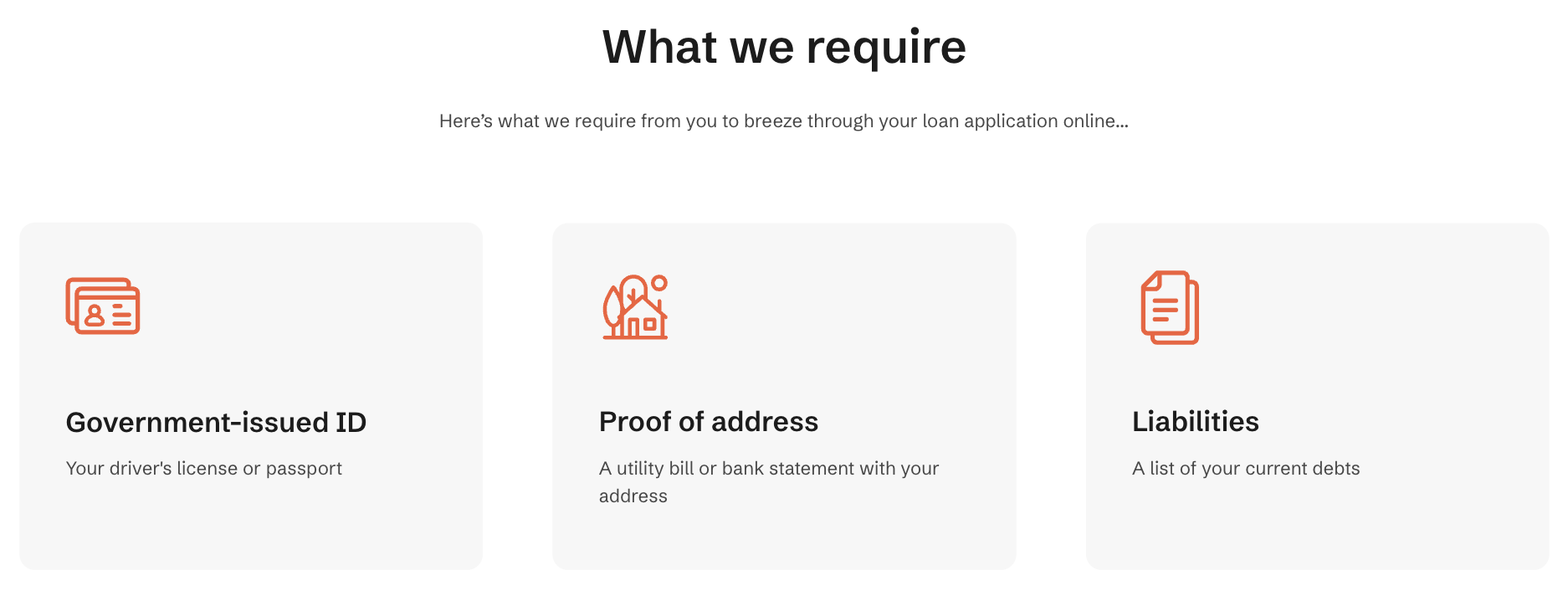
What we require |
Documents required for the online application |

|
|
|
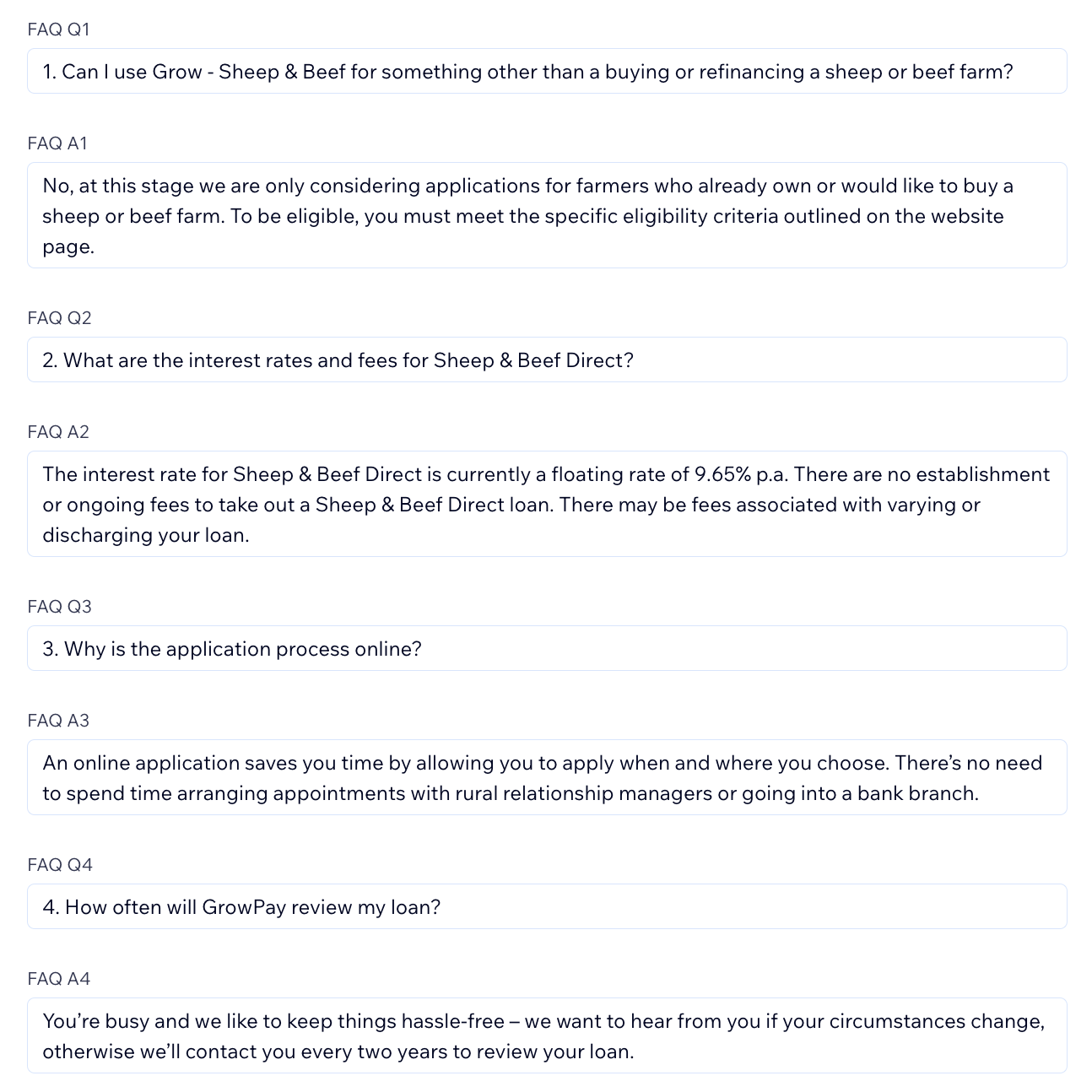
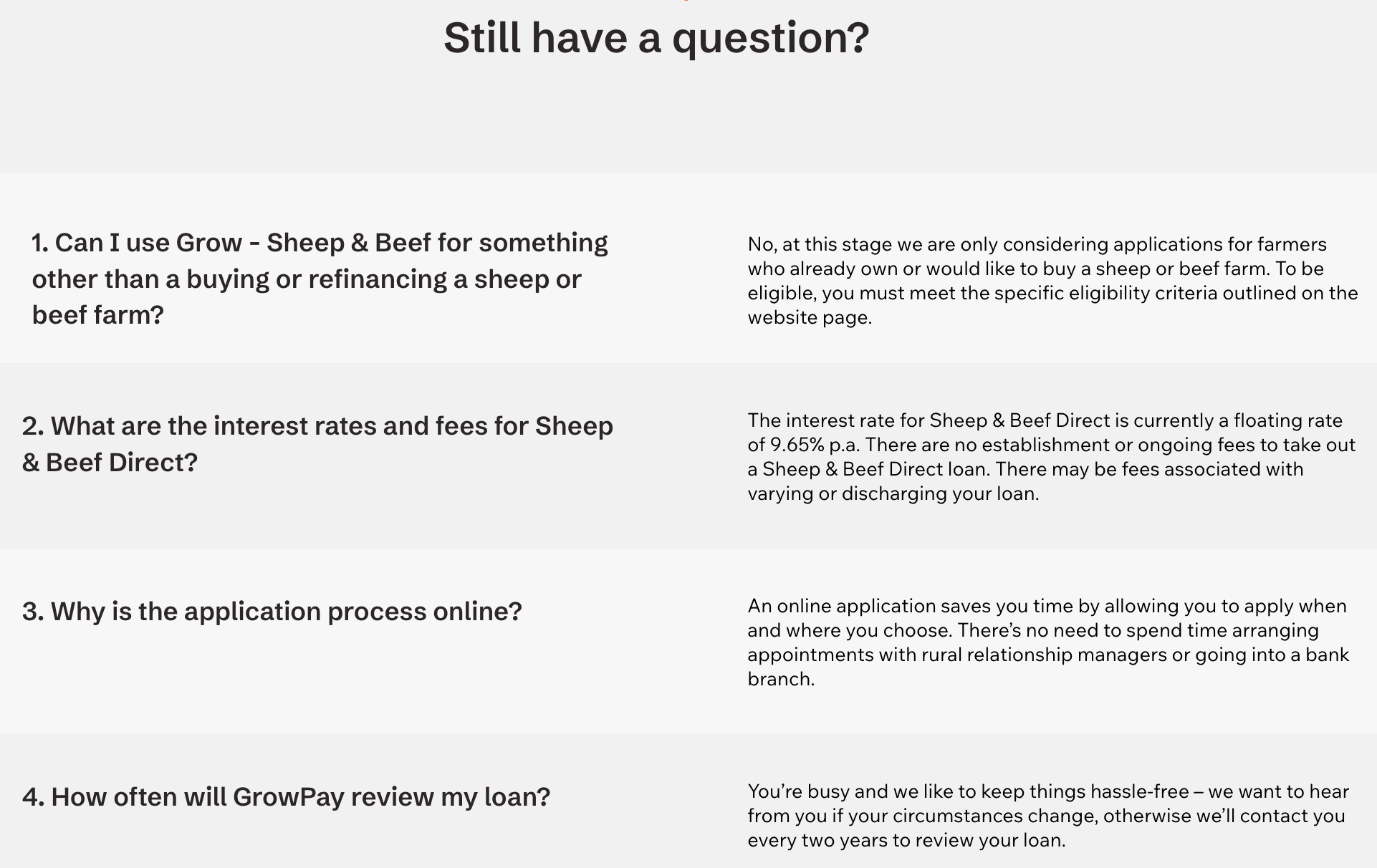
FAQ |
Frequently asked questions about the product |
|
|
|
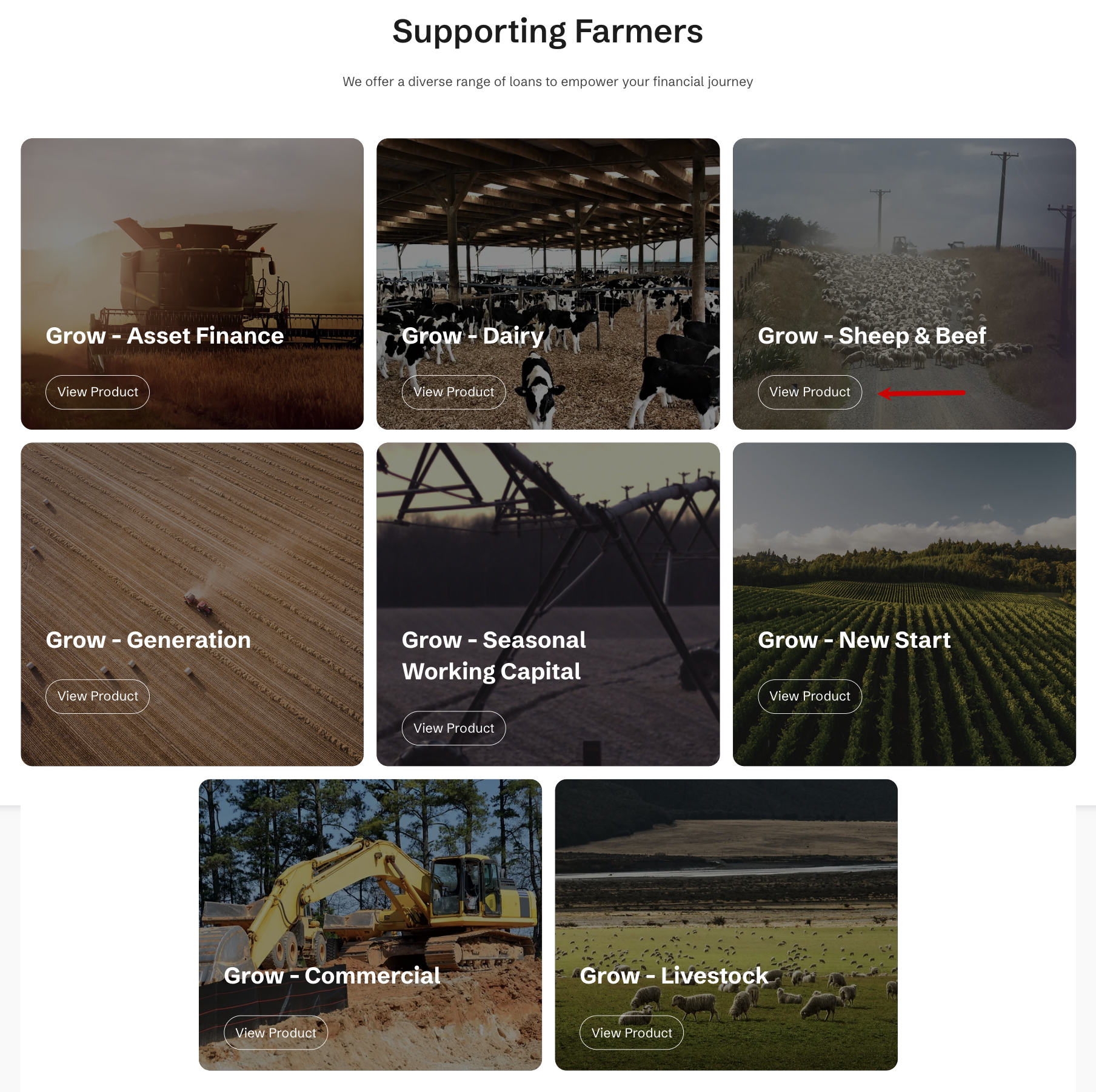
URL loan page |
Click Add Reference to link the main loan page to the product page. |

|
|
-
Click Save.
The published web page